

What problem are we trying to solve?
The current state of AWS-provided instance compliance scanning is limited to the vanilla profiles available within Amazon Inspector for various operating systems. However, AWS Systems Manager (SSM) has an AWS-provided document (AWS-RunInspecCheck) that can be used to run Chef InSpec profiles on managed instances in order to assess their compliance level. While this document is limited in scope to a single profile, we can build a solution that leverages the document by deploying an SSM Automation Association that runs various Chef InSpec profiles against multiple operating systems within the environment.
Solution Overview
Download the CloudFormation template here.
Systems Manager Custom Document
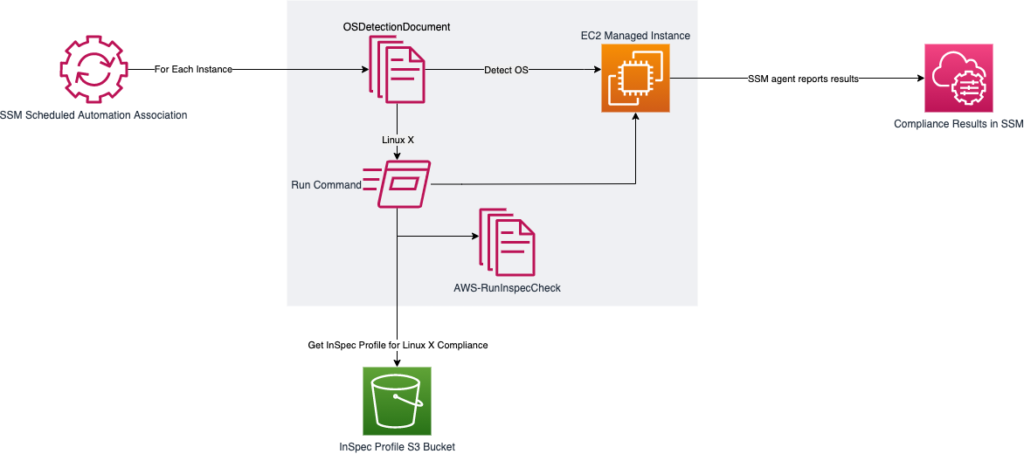
In order to leverage the AWS-RunInSpecCheck document against multiple operating systems, we have to create a custom document that performs OS detection. Since this will be an Automation type document, we must use schema version 0.3.
The document will do a couple of things. First, we describe the instance in order to determine the instance ID and if it is in a running state before moving forward. If the instance is running, we ask the instance for the PlatformName and PlatformVersion. Based on this information, we can filter the instance into a step designed to execute the AWS-RunInspecChecks with the appropriate Chef InSpec profile. The Chef InSpec profile is located in an S3 bucket path designated as a parameter in the CloudFormation template.
The code below is provided as a CloudFormation resource. Included are comments regarding where other Operating System steps can be added.
CustomDocument:
  Type: AWS::SSM::Document
  Properties:
    Content:
      description: Document to detect OS version of running instances and execute the correct Chef InSpec profile on them
      schemaVersion: '0.3'
      assumeRole: '{{AutomationAssumeRole}}'
      parameters:
        AutomationAssumeRole:
          default: ''
          type: String
          description: The ARN of the role that allows Automation to perform the actions on your behalf
        InstanceId:
          type: String
          description: EC2 Instance target
      mainSteps:
        - name: GetInstanceState
          action: 'aws:executeAwsApi'
          inputs:
            Service: ec2
            Api: DescribeInstances
            InstanceIds:
              - '{{InstanceId}}'
          outputs:
            - Name: runningstate
              Selector: '$.Reservations[0].Instances[0].State.Name'
              Type: String

        - name: DetermineIfRunning
          action: 'aws:branch'
          inputs:
            Choices:
              - NextStep: GetInstance
                Variable: '{{GetInstanceState.runningstate}}'
                StringEquals: running
            Default: Sleep

        - name: GetInstance
          action: 'aws:executeAwsApi'
          inputs:
            Service: ssm
            Api: DescribeInstanceInformation
            InstanceInformationFilterList:
              - key: InstanceIds
                valueSet:
                  - '{{ InstanceId }}'
          outputs:
            - Name: platformName
              Selector: '$.InstanceInformationList[0].PlatformName'
              Type: String
            - Name: platformVersion
              Selector: '$.InstanceInformationList[0].PlatformVersion'
              Type: String

        - name: ChooseOSforCommands
          action: 'aws:branch'
          inputs:
            Choices:
              - And:
                  - Variable: '{{GetInstance.platformName}}'
                    Contains: # Linux Distro e.g. Amazon Linux
                  - Variable: '{{GetInstance.platformVersion}}'
                    Contains: # Linux Distro Version e.g. 2
                NextStep: runInspecForLinux
            Default: Sleep

        # Add more steps here like the one above in order to look for other types and versions of Operating Systems

        - name: runInspecForLinux
          action: 'aws:executeAwsApi'
          maxAttempts: 3
          timeoutSeconds: 3600
          onFailure: Abort
          inputs:
            Service: ssm
            Api: SendCommand
            DocumentName: AWS-RunInspecChecks
            InstanceIds:
              - '{{ InstanceId }}'
            Parameters:
              sourceType:
                - S3
              sourceInfo:
                - !Ref InSpecProfile1S3Path
          isEnd: true

        # Add more steps here like the one above to redirect to the correct S3 source path

        - name: Sleep
          action: 'aws:sleep'
          inputs:
            Duration: PT3S
    DocumentType: Automation
Systems Manager Association
But Stephen, CloudFormation doesn’t currently support creating SSM Automation Associations!
Well, yes. But that doesn’t stop us from creating a custom resource that executes a Lambda function to create and maintain it for us. Here is some python code we can use inside a Lambda function. The environment variables referenced are defined in the CloudFormation template in Solution Overview:
import json
import boto3
import os
import cfnresponse

ssmCustomDoc = os.environ['ssmDoc']
ssmAutomationRole = os.environ['ssmRole']
ssmAssociationName = os.environ['ssmAssociation']
scanSchedule = os.environ['scanSchedule']

ssm = boto3.client('ssm')

def handler(event, context):

    if event['RequestType'] == 'Create':
        response = ssm.create_association(
            Name=ssmCustomDoc,
            AssociationName=ssmAssociationName,
            Parameters={
                'AutomationAssumeRole': [ssmAutomationRole]
            },
            Targets=[
                {
                    'Key': 'InstanceIds',
                    'Values': ['*']
                }
            ],
            AutomationTargetParameterName='InstanceId',
            ScheduleExpression=scanSchedule
        )

    if event['RequestType'] == 'Update' or event['RequestType'] == 'Delete':
        associations = ssm.list_associations(
            AssociationFilterList=[
                {
                    'key': 'AssociationName',
                    'value': ssmAssociationName
                }
            ]
        )
        associationID = associations['Associations'][0]['AssociationId']

        if event['RequestType'] == 'Update':
            response = ssm.update_association(
                AssociationId=associationID,
                Parameters={
                    'AutomationAssumeRole': [ssmAutomationRole]
                },
                Name=ssmCustomDoc,
                Targets=[
                    {
                        'Key': 'InstanceIds',
                        'Values': ['*']
                    }
                ],
                AssociationName=ssmAssociationName,
                AutomationTargetParameterName='InstanceId',
                ScheduleExpression=scanSchedule
            )

        if event['RequestType'] == 'Delete':
            response = ssm.delete_association(
                Name=ssmCustomDoc,
                AssociationId=associationID
            )

    cfnresponse.send(event, context, cfnresponse.SUCCESS, {})
Results
So let’s take a look at the entire stack after it’s deployed.
First, let’s verify that the Lambda function successfully created the association for our custom document.
Cloudwatch log showing successful invocation of the custom resource to create the automation association:

AWS Lambda CloudWatch Logs Showing Successful Execution of Custom Compliance Scan Automation
Next, let’s go ahead and execute this association ad-hoc in order to ensure it works. We can see in the Run Command section of Systems Manager that several commands have been kicked off.
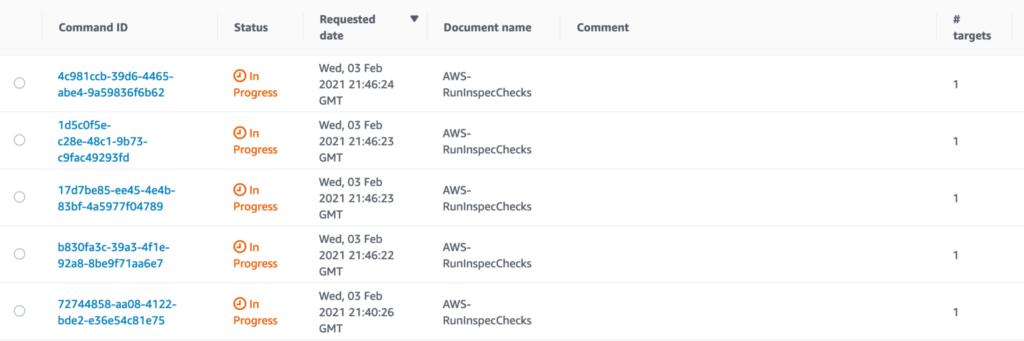
Okay great. Once they finish executing, where are the results? We can see them in the Compliance section of Systems Manager.
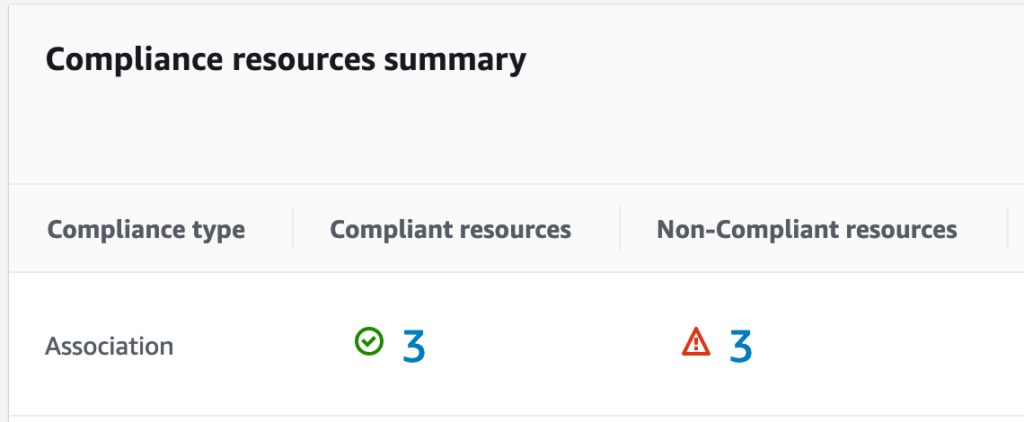
From here, you can drill down into instances that are compliant and non-compliant, and then drill down even further to see which checks are failing as part of the Chef InSpec profile that was run.
There you have it. We have successfully scanned multiple operating systems via a single automation association. Now that our results are in the Compliance section of Systems Manager, we can track their resolution either via the console or programmatically.
Looking Ahead
This solution leverages S3 buckets to store Chef InSpec profiles. While a CI/CD pipeline can be set up to populate those buckets with new changes to the profiles, this is not ideal when the SSM document can tie directly into Github. Improvements to this stack are possible in that regard.
We can also create infrastructure in order to forward these results to a CloudWatch log group in order to subscribe results to further automation mechanisms or log forwarding to a SIEM.